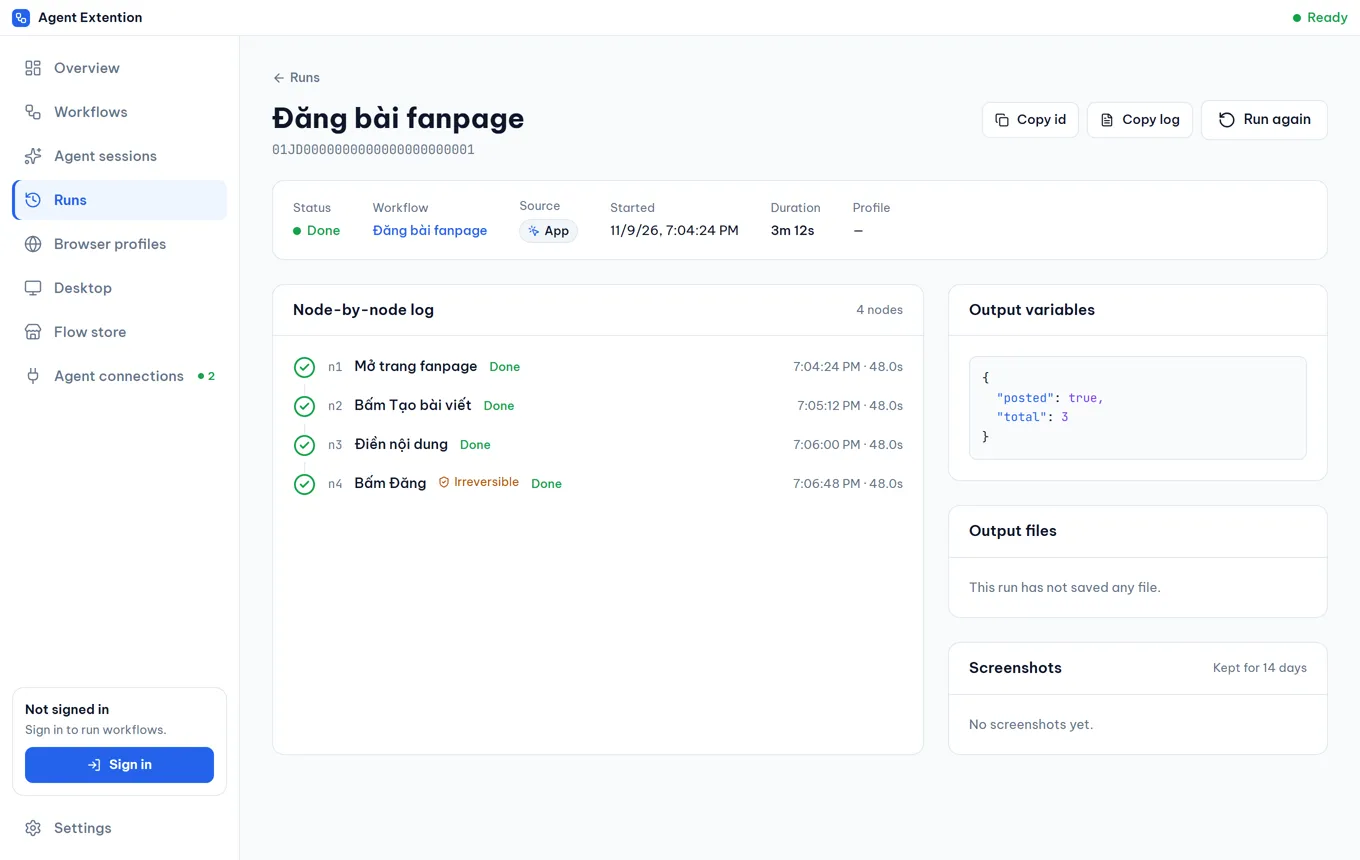
Step-by-step log
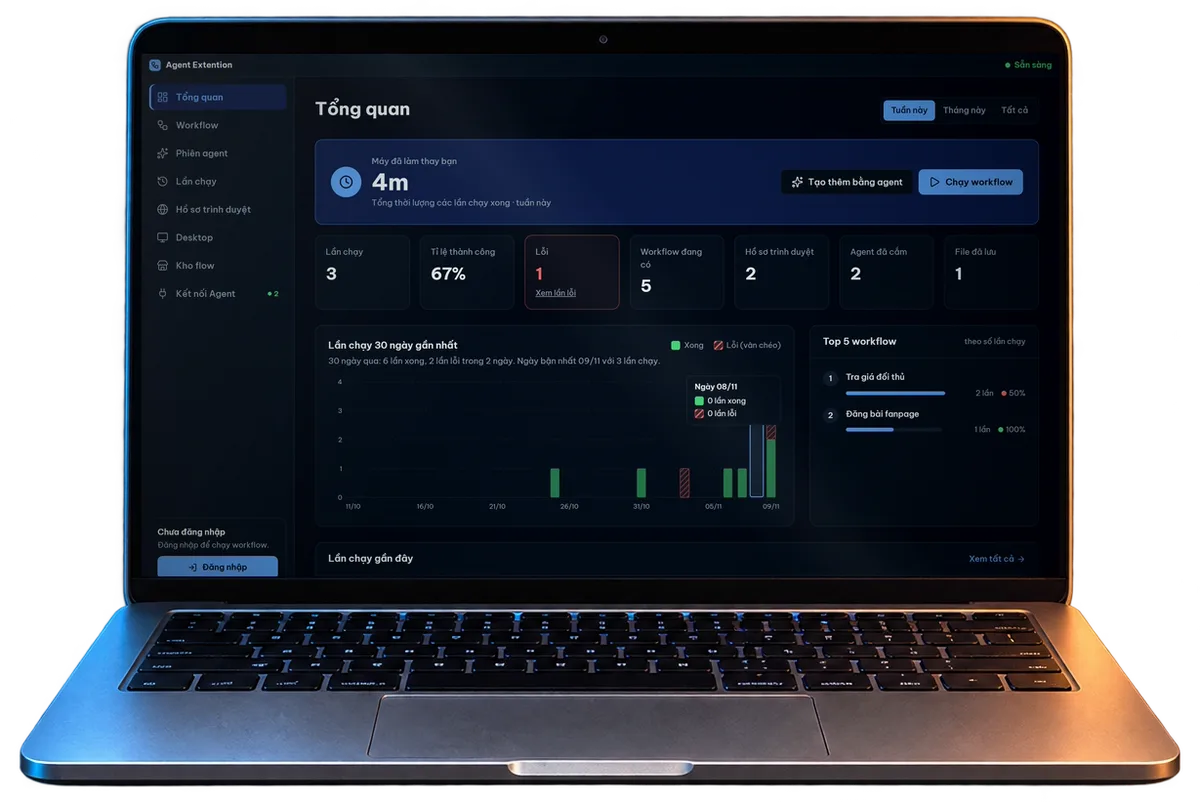
Every run records each step, how long it took, what it produced, and screenshots. When something breaks you see exactly where.
 Agent Extension

AI automation made easy for everyone
Your AI agent works across websites and the apps on your computer. Do it once, replay it with one click.
Download freeWindows and macOS

You ask your agent in Claude Code:
“Get the tote bag price from Excel, post the sale on the Shop Linh fanpage, then log the post link in Excel.”
The agent stops just answering and starts doing: it opens apps and websites and works like a person would. Every action is recorded on your machine, with before and after screenshots.
Read Excel Desktop app
Opens the orders file in Excel and reads today's tote bag price.
Open fanpage Web
Opens the Shop Linh fanpage in a browser that is already signed in.
Write the post Web
Fills in the sale text with the price it just read from Excel.
Add photo Web
Picks the tote bag photo from a folder you allowed.
Wait for you You
Stops before “Post” and asks you.
Write back to Excel Desktop app
Pastes the new post's link into the “Posted” column in Excel.
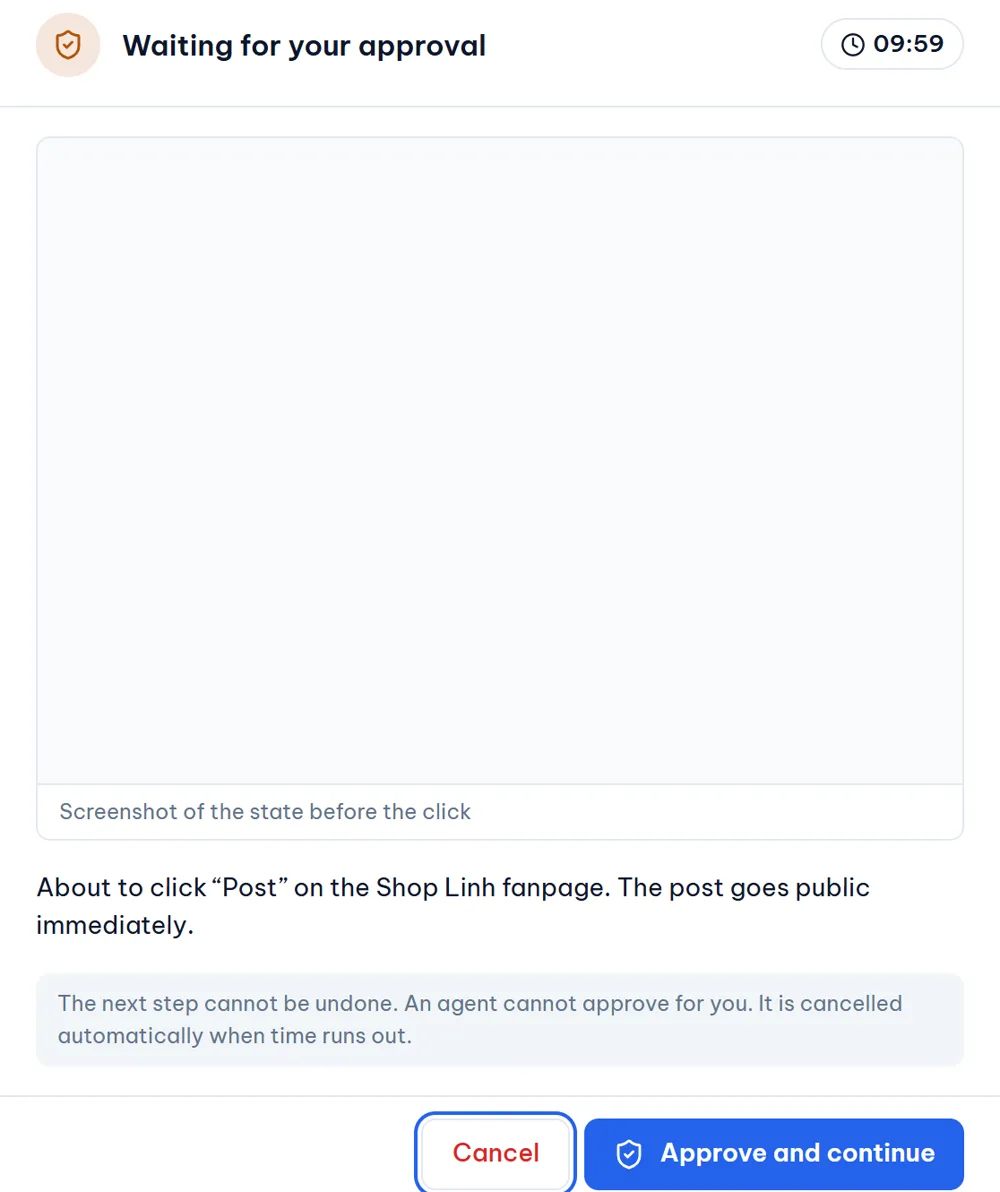
Sending, posting and deleting cannot be undone. The app stops, shows you a screenshot and waits for you. The agent cannot approve for you.
If nobody approves within 10 minutes, the step is cancelled.
Tomorrow, another post.Next Monday, order reconciliation.End of the month, the report.

From now on it is one click, the Excel part and the web part. No agent, no babysitting.
Replayed on this page 0Illustration on this page, using the exact steps just recorded.
Same idea, automation, without having to learn how to build the system.
| With n8n | With Agent Extension |
|---|---|
| Rent a VPS, install Docker, keep a server running 24/7 | Install it like any app on Windows or Mac |
| Get API keys, learn webhooks and OAuth | Not needed: the app works the screen like a person |
| Drag nodes and wire data between steps yourself | Say it in words; the AI does it and the workflow builds itself |
| Lots of work has no API: personal Zalo, Excel on your computer, in-house software, sites behind a login | It works, because the app drives your own browser and apps |
| Errors mean reading JSON logs | Replay each step with screenshots |
Connect the app to your agent with one click. From then on it can work in any website and any app on your computer, not just in the chat window.
Pick your work to see a few repeat jobs the app takes over. By default, anything that sends or posts waits for your approval first.
Reads your product list in Excel, fills in each site, and stops for your approval before posting.
Opens your order dashboard, collects new orders and writes them to your Excel file.
Opens the statement page you're signed in to, checks it against Excel and marks paid orders.
Every run records each step, how long it took, what it produced, and screenshots. When something breaks you see exactly where.
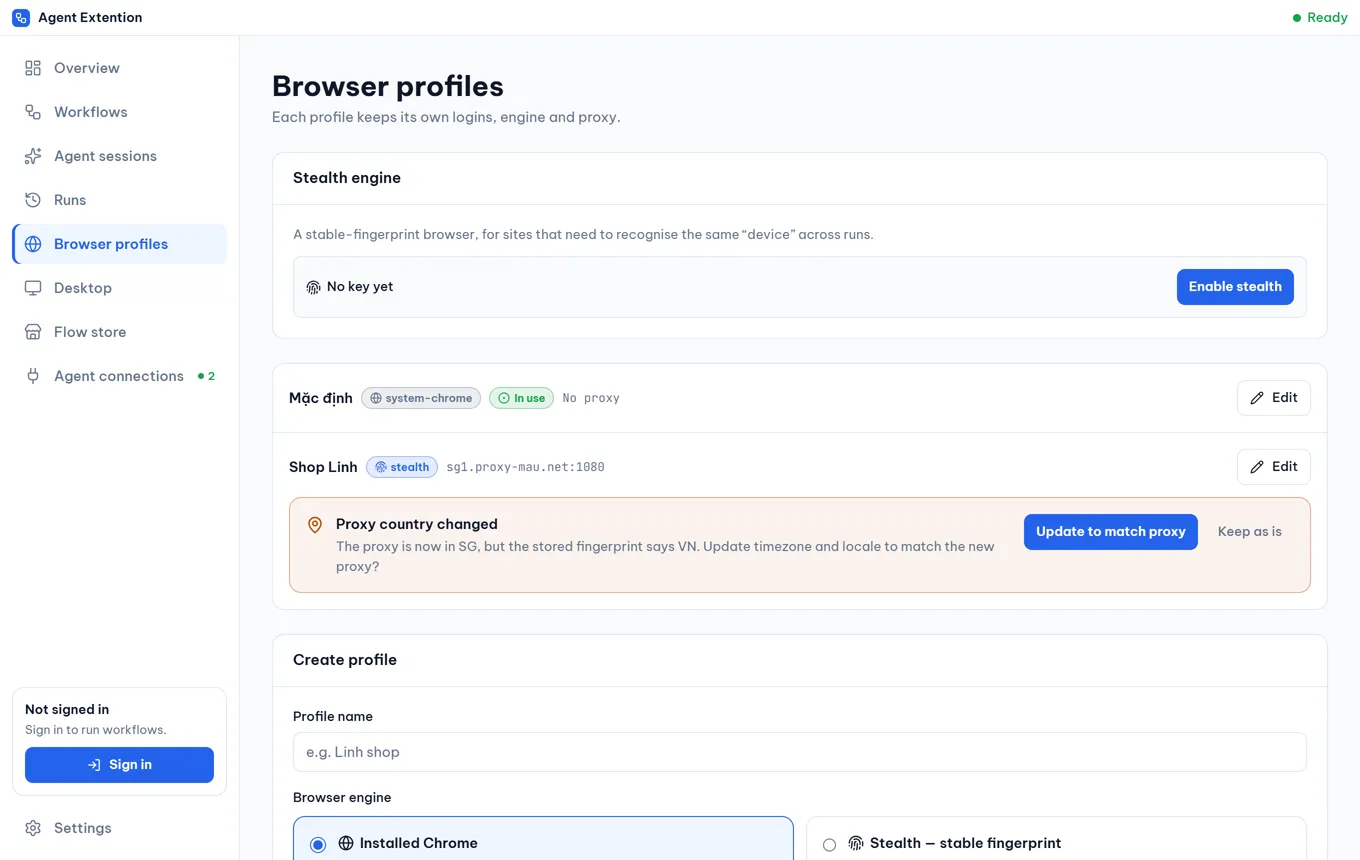
Each profile keeps its own sign-ins, never mixed up. When a site blocks automation, switch on enhanced private browsing with one button.
Your workflows, Store flows, files a friend sent and flows from a project repo, all in one place, one click to run.
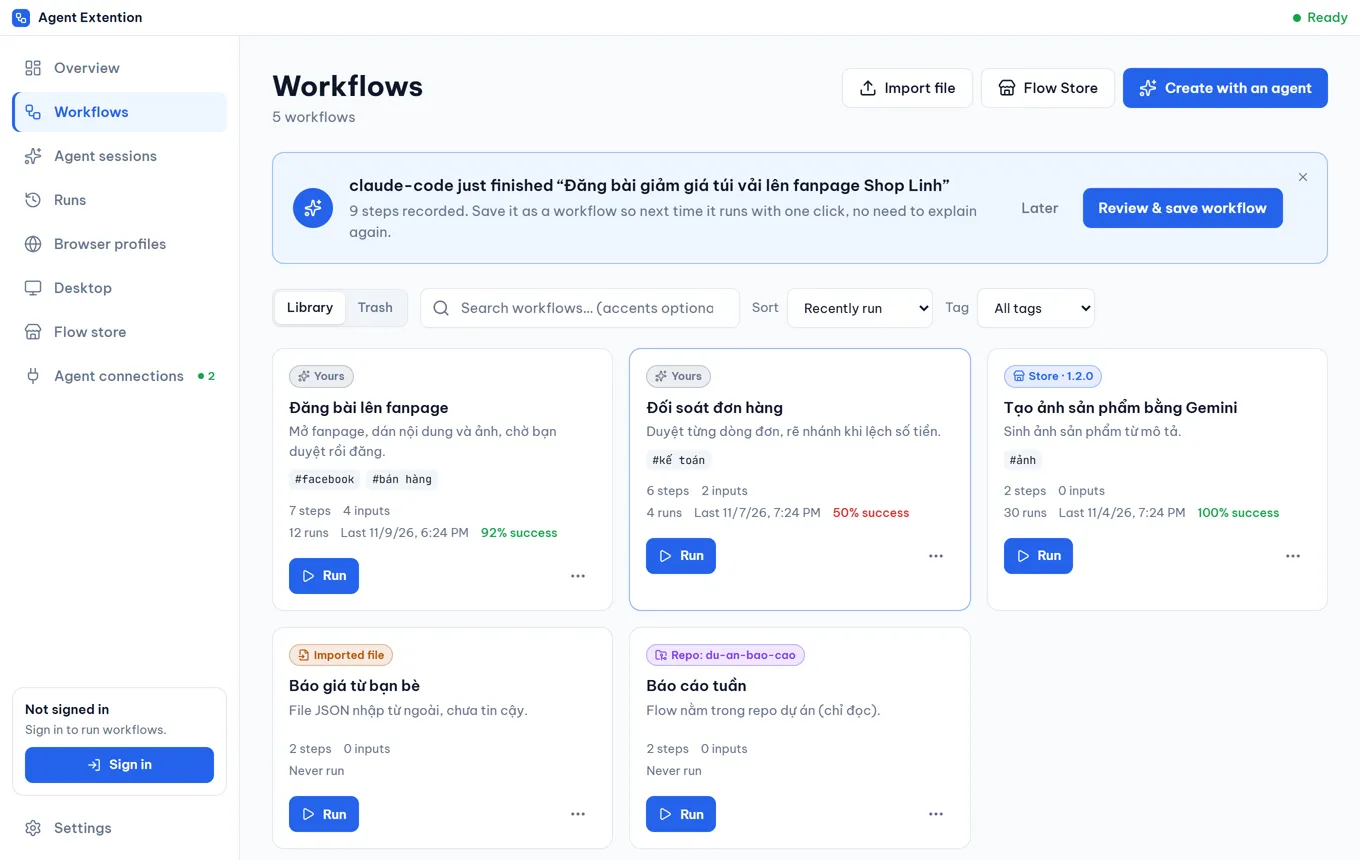
Ready-made, tested workflows: image generation, data collection, posting. Free runs free flows, Starter adds Starter flows, Pro unlocks the whole Store.
0đ
Free forever, sign-in required
990,000 VND / year
or 99,000 VND / month
For getting started with automation
1,990,000 VND / year
or 249,000 VND / month
Unlimited runs
Contact us
For teams sharing the app
Paid by Vietnamese bank transfer (QR code), active within minutes of payment. A one-off purchase of 30 or 365 days with no auto-renewal; yearly is about 17 to 33% cheaper. Full pricing details
Not by default: anything that cannot be undone (send, post, delete, pay) stops and waits for your approval. For a workflow you have reviewed and trust, you can pre-approve it once so the agent runs it all the way without asking again; if the workflow is edited, that permission is dropped automatically.
Session traces, screenshots and workflows stay on your machine. The server only receives your account email, plan, daily run count and orders. See the Privacy page.
No. The list of allowed folders only covers files the app reads and writes. When it works in an app on your computer (Excel, Zalo, File Explorer) it acts like a user and is not limited by folder.
Mostly, yes: it reads button names the same way screen readers do for blind users. Icon-only buttons without a name are harder; the app then relies on position and screenshots, and may need a small fix from you.
Claude Code, Claude Desktop, Codex, Cursor, Antigravity or VS Code. Saved workflows run inside the app without an agent.
Switch on enhanced private browsing for that profile. It uses a partner's browser: you sign up with them for free to get an activation code (the free tier runs one browser at a time), and the app downloads and installs it.
n8n needs a server, API keys and wiring every step; RPA such as UiPath or Power Automate means learning a Studio, tuning selectors and usually an IT team to roll it out. Here you say it in words, an AI agent does the job once like a person, and the app records it as a workflow; it works on web pages and in desktop apps where there is no API. To be straight: the app runs while your computer is on, so it doesn't replace a server running 24/7 or wiring hundreds of services through APIs.
Every send, post and delete waits for your approval first. The app works on your own accounts, under each platform's terms.
Yes. The app runs an MCP server on your own machine, so Claude Code, Codex, Cursor and other MCP-capable agents connect with one click. You do not need to know what MCP is to use it.
Workflows in the regular browser and the apps on your computer keep running. Free keeps a 3-day reserve of signed runs; a verified Pro license works up to 7 days offline.
Install the app, connect your agent, ask it once, on the web or on your computer.
The box appears because the app's code-signing certificate is still being issued, not because the app is harmful. Once the app is signed, the box goes away.